

There are many ways to buy web hosting from us and place order but below are the steps for one of them to place order on www.paceinfonet.com.
-
Visit http://www.paceinfonet.com And Click on Web Hosting -> Windows Web Hosting (or Simply Visit-https://paceinfonet.com/windows-web-hosting/
-
Next, Please check our web hosting packages and choose your plan. Then click on Order Now Button

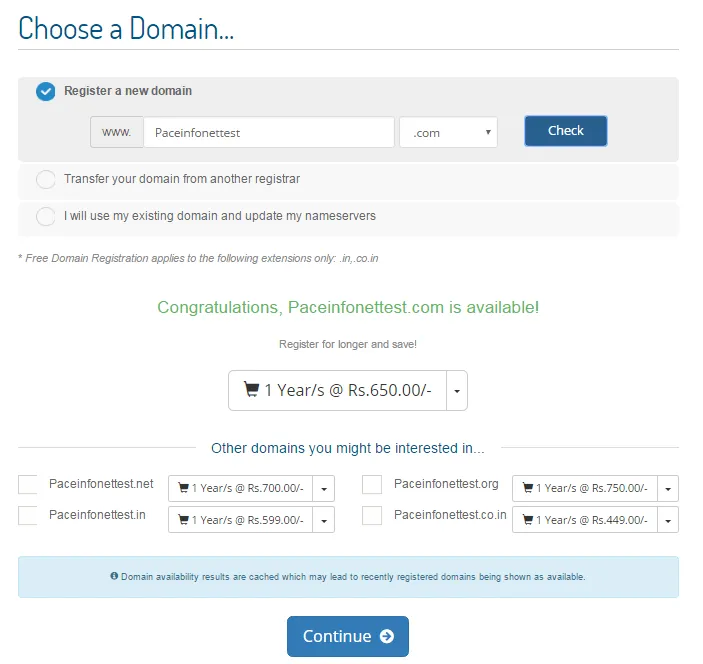
3.Enter the domain name you would like to register OR
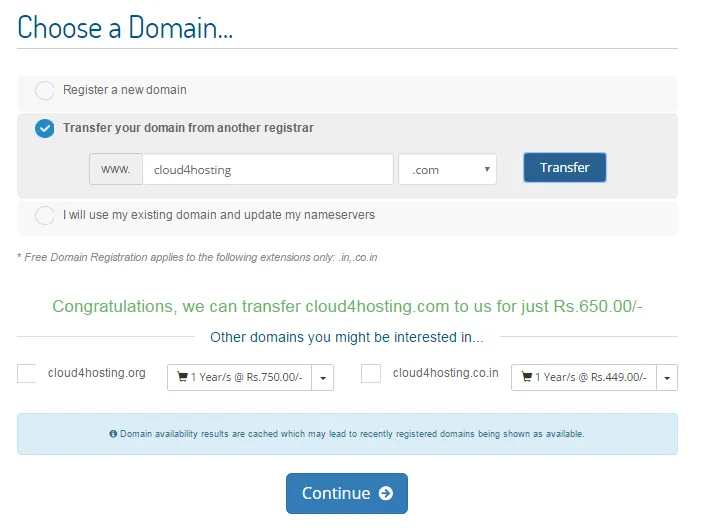
click on the Transfer your domain from another registrar and enter your domain & EPP code (Transfer Authorization Code), then click on transfer button OR
IF you have already book your domain and use same domain with your hosting then please select option “I will use my existing domain and update my nameservers” and click on use.
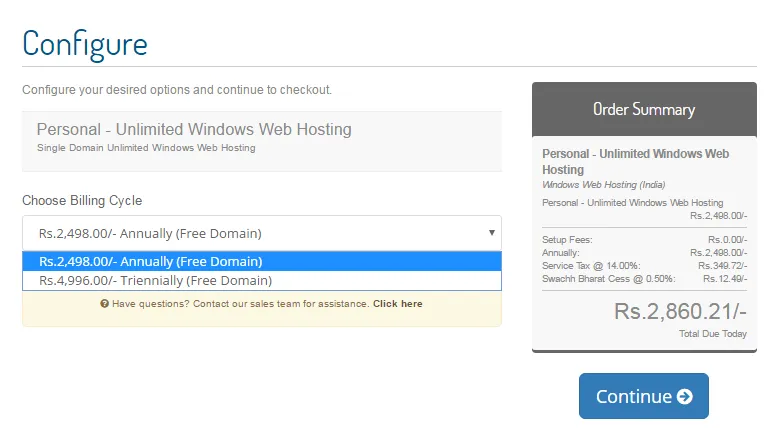
Next, choose the billing cycle and click the Continue button to complete the order
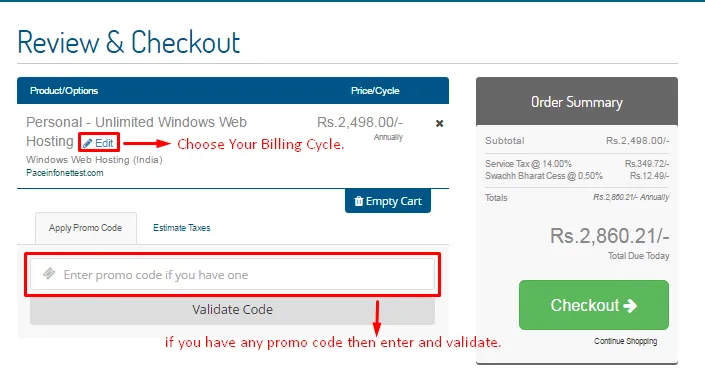
If you have a coupon code, enter in the Promo Coupon section and then validate your code. Then click the Checkout button to proceed. If you would like to order for more items, click on the Continue Shopping link.
If you are a new customer, fill in your details in the New Customer tab. If you are an existing customer, you may click the Already Registered? button and fill in your login details.
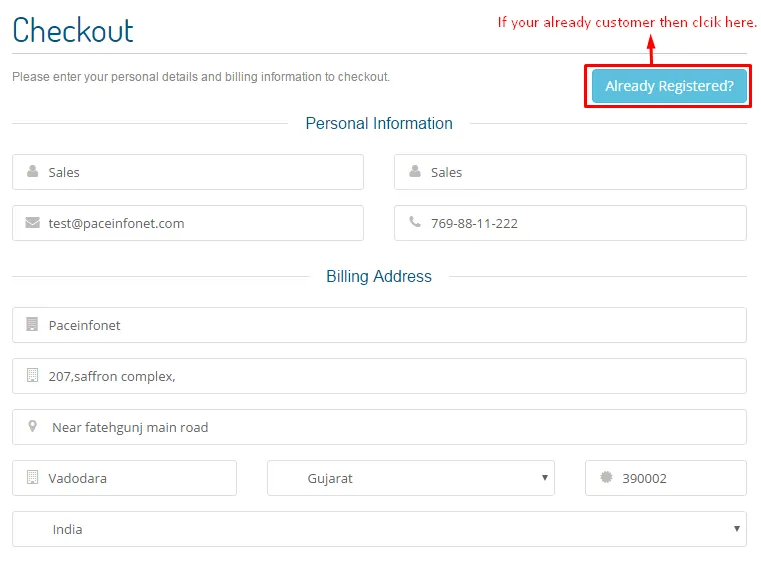
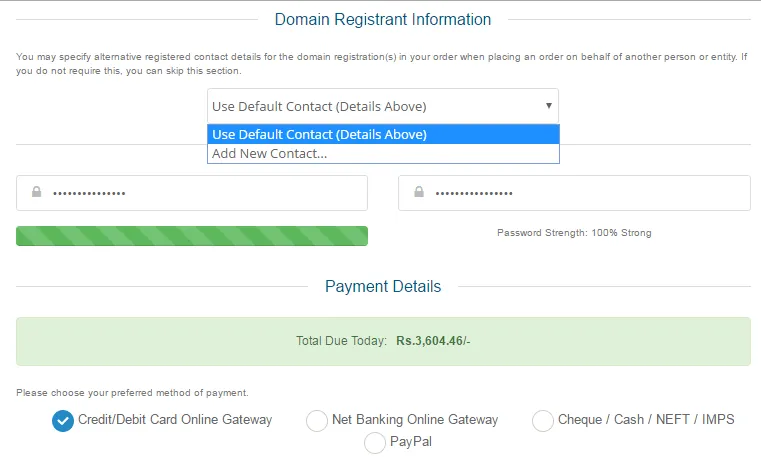
If you want different registration details for your domain then click on dropdown and Add New Contact and fill up the details of your new domain registrant. If you want same details for domain then select “Use Default Contact (Details Above)”.
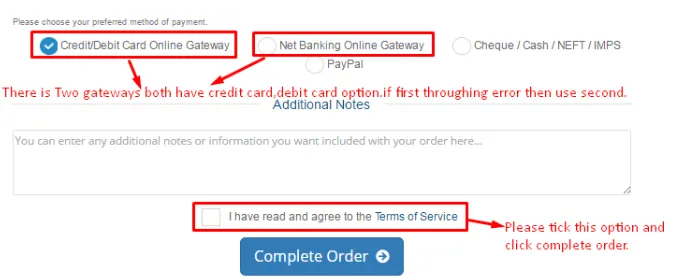
Next,choose your payment method, tick mark on “I have read and agree to the Terms of Service” then click on Complete Order button.
After submitting the order, we receive your order notification in our system and you are then redirected to Payment Gateway if you have chosen an online payment method. If there is some problem while trying to make the payment online, then please check our below article to know how you can make payment from your Client Area on our Billing & Support center.
Blogtags: PaceInfonet hosting plans, how to purchase web hosting online, PaceInfonet hosting services India, web hosting signup process