

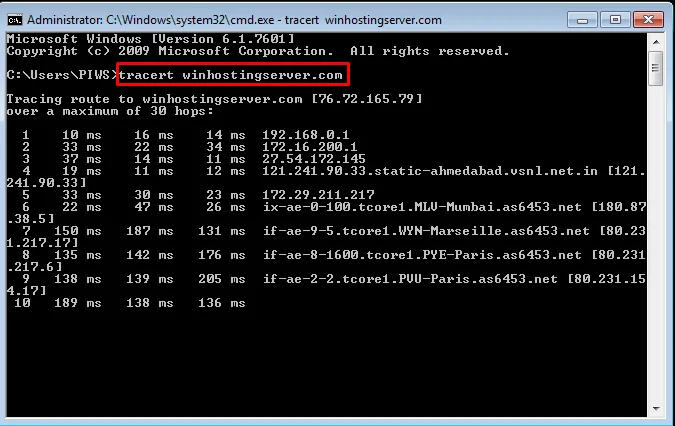
Traceroute is a command that traces the route of data packets from the computer it is initiated to the server from where the request is finally served. The resulting report will give a list of routes from which the request passes through till it reaches its destination. This report help to identify if a data packets are getting dropped, lost or discarded at any stage of the request thus aiding in network level troubleshooting. On Windows Operating System, select Start > Programs > Accessories > Command Prompt. This will give you a window like the one below. Enter the command “tracert”, followed by a space, then the domain name or IP Address you want to trace. Following is a successful traceroute from a personal computer to a Web Server located in a DataCenter.
Blog tags: shared hosting vs VPS hosting, VPS vs dedicated hosting, cloud hosting vs shared hosting, best web hosting for beginners